
I only publish an AI headshot if it looks like me today - not a younger or reshaped version of me. My starting point: a square JPG or PNG, at least 400 × 400 pixels and no larger than 8 MB, with my face clear in LinkedIn’s circular crop.
Before posting, I check five things:
- Source photos: Recent, sharp solo photos with no private details or location metadata.
- Likeness: My facial features, age, skin tone, hair, and glasses stay unchanged. I ask 2–3 people who know me whether they recognize me immediately.
- Image quality: Natural skin texture, clear lighting, and no AI errors. Clothing and backgrounds must not imply jobs or affiliations I don’t have.
- Rights and privacy: Permission to use the photos, clear output rights, and stated rules for training, storage, sharing, and deletion.
- Final approval: Desktop and mobile previews, the subject’s permission if I’m posting for someone else, and a new check when my appearance changes.
My rule is simple: polish comes second. <u>If any required check fails, I don’t publish.</u>
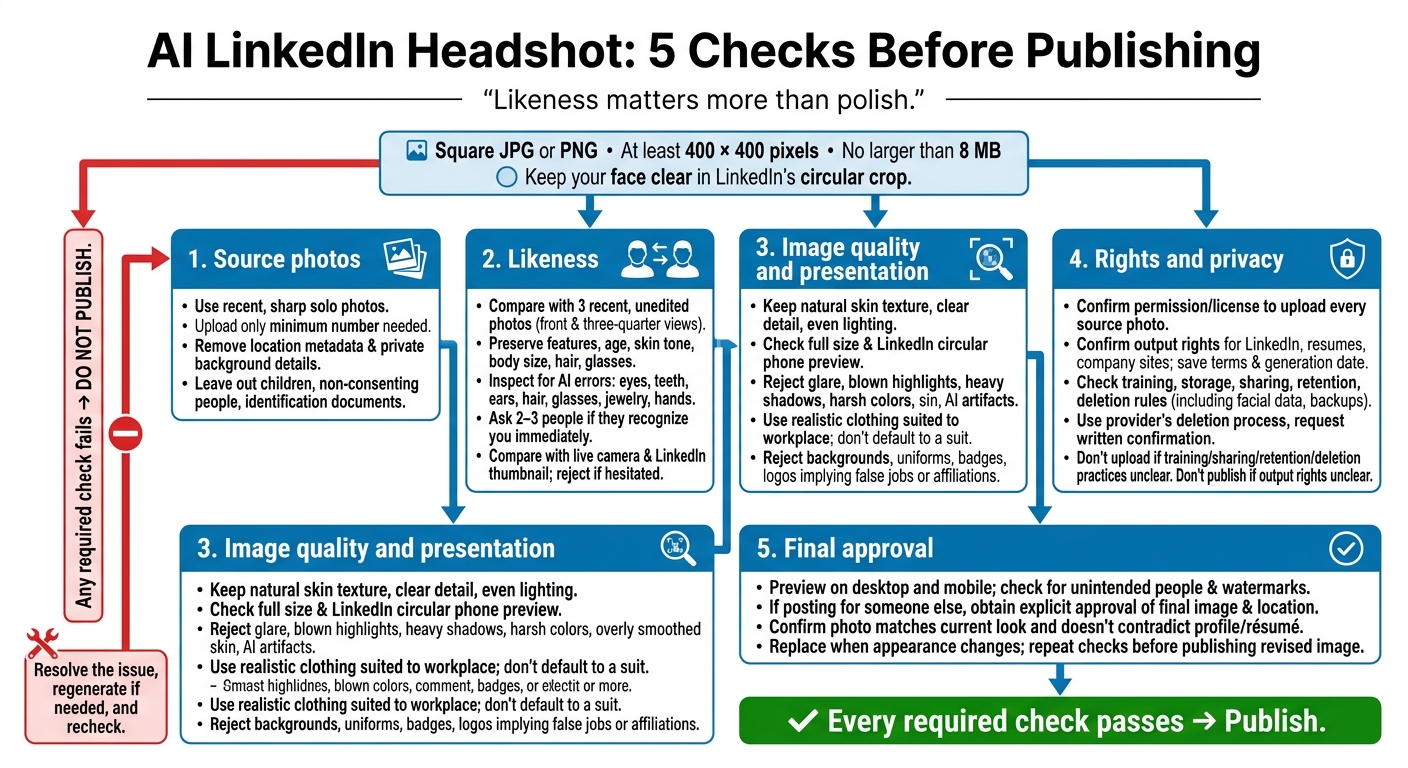
AI LinkedIn Headshot: 5 Checks Before Publishing
2. Check Facial Accuracy and Misleading Changes
Check Facial Features and AI Errors
Once the crop passes, check that the face still looks like you. Use three recent, unedited photos from the past year, including front-facing and three-quarter views. Hide the clothing and background, or crop each photo to the face, so styling doesn’t influence your comparison.
Compare your face shape and proportions, then check your eyes, eyebrows, nose, mouth, chin, and ears. Look at your hairline, skin tone, and identifying marks, too.
Inspect the image at full resolution. Check pupils, eye alignment, reflections, teeth, ear shapes, and hair edges. Look for floating glasses frames, fused or duplicated earrings, and malformed fingers on visible hands. Make sure your usual glasses, facial hair, sideburns, piercings, and religious or cultural head coverings haven’t been changed or removed.
Make Sure Others Would Recognize You
A face can pass a technical check and still fail to look like you. Age, skin tone, and apparent body size are nonnegotiable. Compare images under similar lighting, since exposure differences can change how skin tone appears. Color correction is fine; skin lightening, mark removal, and age smoothing are not.
Show the portrait to a colleague, friend, or interviewer without explanation as part of your AI-enhanced job search. Ask whether they recognize you immediately. Then compare it side-by-side with your live camera feed, checking both the full-size image and a LinkedIn thumbnail. If there’s any hesitation, reject the image.
Don’t publish until every questionable feature is resolved. Regenerate the portrait using clearer source photos, and specify that facial structure and identifying features must stay unchanged. Keep the reference photos and generated images side-by-side. Get a second opinion if the concern involves age, skin tone, body size, or an identifying feature.
sbb-itb-20a3bee
3. Review Image Quality, Background, and Clothing
Once the image looks like you, check how it presents you. Start with image quality at LinkedIn size, then review the background and clothing.
Check Sharpness, Lighting, Background, and Crop
View the image at full size and in LinkedIn’s circular phone preview. Choose a higher-resolution square export when available to help facial details stay sharp after compression.
Look for even lighting and natural skin texture. Reject images with glare, blown highlights, heavy shadows, harsh color casts, or overly smoothed skin.
Choose a simple background with enough contrast to separate your hair and clothing without drawing attention away from your face. Remove logos, signs, identifiable offices, or landmarks that suggest affiliations you don’t have. Check for halos around hair and shoulders, repeated textures, tilted lines, and warped perspective.
Check Clothing for Fit, Accuracy, and Job Relevance
Choose clothing that fits your target workplace’s usual level of formality - don’t default to a suit. Keep colors and patterns understated so your outfit neither competes with your face nor blends into the background.
Look closely at collars, lapels, seams, buttons, ties, and jewelry. Reject doubled buttons, broken patterns, collars fused to the neck, and fabric folds that couldn’t occur naturally. Reject AI-added uniforms, badges, or insignia unless they match your actual role. Remove badges, seals, and employer logos that don’t reflect your real credentials or affiliations.
For more linkedin-optimization strategies, After these appearance checks, review rights and privacy before publishing.
4. Review Image Rights, Privacy, and Publishing Permission
Once the image passes appearance checks, confirm you have the rights, privacy safeguards, and approval needed to publish it.
Check Photo Permissions and Service Terms
Make sure you have permission or a license to upload each source photo. Check that the output license allows use on LinkedIn, resumes, and company websites. Review limits on commercial use, sublicensing, attribution, watermarks, territory, license duration, training, retention, and deletion.
Save a copy or screenshot of the applicable terms, along with the generation date. If output rights are unclear, wait to publish until the provider clarifies them.
Review Facial Data Storage and Deletion
Check whether the provider stores facial images, creates facial embeddings or other biometric identifiers, or shares that data with others. Treat facial images and derived templates as biometric data.
Verify how long the provider retains uploads, outputs, derived facial data, logs, third-party copies, and backups - and whether deletion covers all of them. Use the provider’s deletion process, not just the remove button. Request written confirmation.
Upload only the minimum number of clear, recent photos. Remove location metadata, and leave out children, anyone who hasn’t consented, identification documents, and sensitive background details. Use a strong password that you don’t use elsewhere, and turn on multi-factor authentication when available.
Don’t upload photos if the provider’s training, sharing, retention, or deletion practices are unclear. Once privacy checks pass, move to final approval and publishing.
Approve, Preview, and Update Your Photo
Before publishing for someone else, get their explicit approval of both the final image and where it will appear. Share the image with them and confirm that the face, age, skin tone, hair, glasses, expression, and overall appearance accurately represent them.
LinkedIn allows artistic renderings only when they still match the person. Keep the image only if the subject confirms the likeness and the service terms allow posting.
Preview the photo on desktop and mobile to check for unintended people or watermarks. Store any retained, unedited reference photo securely. Keep the service name, generation date, and approval record only as long as needed.
Replace the headshot when your appearance changes. Before publishing a revised image, repeat the rights, privacy, and approval checks. Publish only after every check passes.
5. Conclusion: Publish Only When Every Required Check Passes
Once the accuracy, quality, rights, and privacy checks pass, review the headshot one last time for misleading edits.
Likeness matters more than polish. Your headshot should look like you today, appear sharp, suit your target role, and meet all usage-rights and privacy requirements.
Compare Acceptable and Misleading Edits
Use this table to distinguish small touch-ups from changes that misrepresent you.
| Edit | Recommended action |
|---|---|
| Light skin smoothing or blemish cleanup | Limit edits to subtle blemish cleanup; keep natural skin texture. |
| Wrinkle reduction | Keep it minimal; reject obvious de-aging. |
| Hair changes | Accept only changes that match your current hair and hairline. |
| Facial reshaping | Reject major changes to your jaw, nose, eyes, cheeks, or face shape. |
| Clothing replacement | Accept realistic clothing; reject uniforms or insignia that imply roles or credentials you don’t hold. |
| Background replacement | Accept only a plain or softly blurred background that suggests no false affiliation. |
| Age alteration | Reject de-aging or aging that changes how people recognize you. |
Keep Your Headshot Consistent With Your LinkedIn Profile and Résumé
Compare your headshot with a recent, unedited photo and how you look on video calls. Ask 2–3 people who know you whether they recognize you immediately. If they don’t - or they say you look much younger - revise it.
The photo should match the role and experience listed on your LinkedIn profile and résumé. It shouldn’t suggest qualifications, rank, or affiliations you can’t support.
If any must-pass check fails, do not publish.
FAQs
Should I disclose that my LinkedIn headshot is AI-generated?
Disclosure is a personal choice. There’s no universal requirement to label your LinkedIn headshot as AI-generated. What matters most is that it looks professional, is high-quality, and accurately reflects how you look today.
Choose a sharp, clear image that fits your professional brand. It’s fine to use AI to improve clarity or presentation, as long as the result stays true to your appearance and professional identity.
How much retouching makes my headshot misleading?
A headshot becomes misleading when retouching changes how you look enough to make you hard to recognize. Use a recent, well-lit photo that reflects your professional style. Aim for a polished, approachable look, and skip heavy digital edits that hide who you are. Recruiters should recognize you when you meet for an in-person or virtual interview.
Can I delete my photos after they’re used for AI training?
Yes. Reputable AI services usually let you manage your personal information and privacy settings. Check the service’s privacy policy to see how long it stores your uploaded photos and how to request deletion once training is complete.